Dragon Arena Controls & HUD Guide
PC, mobile, tablet, console, controller support, and where every important menu lives.
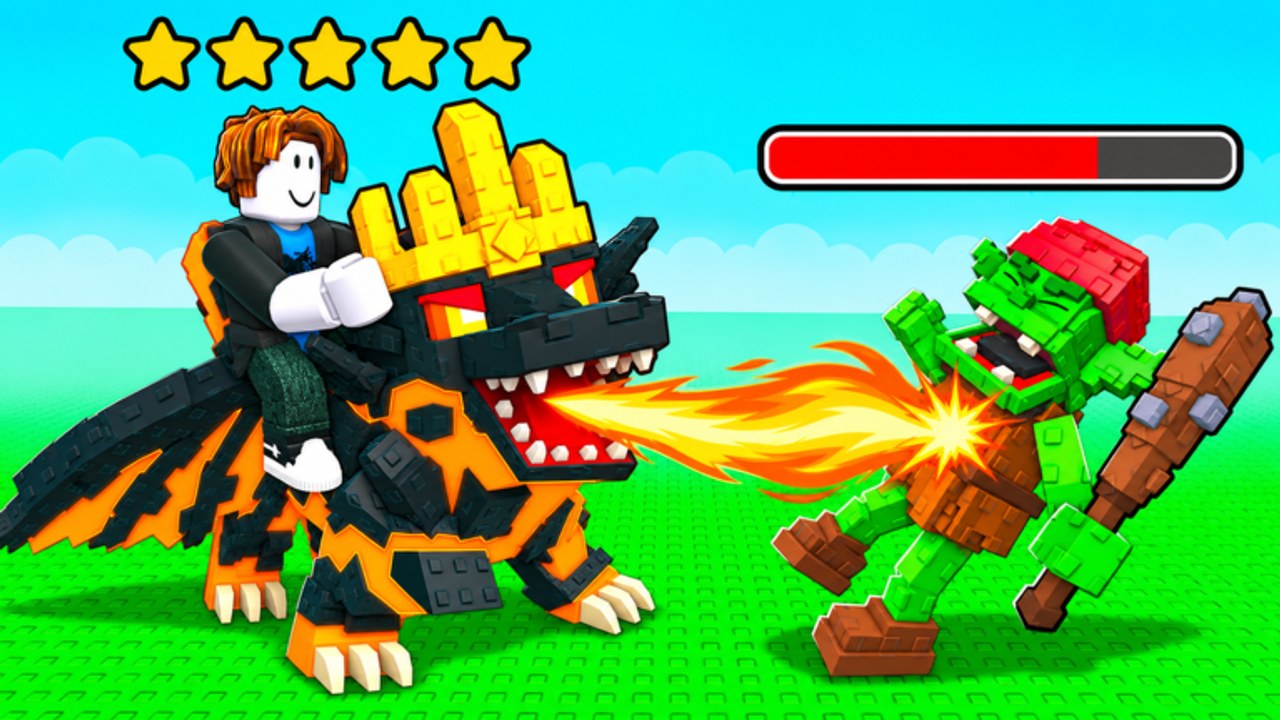
Dragon Arena is built to play wherever you open Roblox: PC, mobile, tablet, and console, with controller support called out in the official experience pitch. This controls guide orients you to the HUD, shows where Shop and codes live, explains wave and breeding UI habits that transfer across devices, and shares accessibility tips so menus never block your dragons from fighting.
The game is a wave tycoon from Vegle & Data 3. You hatch elemental dragons (Fire, Water, Earth, Ice), breed, clear waves and bosses for coins, evolve your plot, and let dragons keep fighting offline. Knowing which button opens Shop matters as much as knowing which dragon to place — especially when you only have two minutes between classes to redeem FreeSpin or fix an empty plot.
If you have not finished onboarding, pair this page with Getting Started. For device-agnostic progression systems, jump to Hatching Eggs, Breeding Dragons, and Waves and Bosses.
Platform overview
PC
Mouse and keyboard remain the most precise way to hit small HUD targets, drag placement decisions, and type codes exactly. Use the pointer for Shop fields and the keyboard for entering FreeSpin without autocorrect surprises. When a controller is connected on PC, you can switch to gamepad navigation — useful on a couch setup — but typing codes is still easier with a keyboard when available.
Mobile and tablet
Touch UI enlarges the same systems. Tap carefully around Shop and breed confirmations; fat-finger mistakes can close a panel or confirm the wrong parent. Tablets give more screen for watching wave clear while you adjust the roster. Hold the device in landscape when possible so wave feedback and menus share space without constant zooming.
Console
Console players rely on controller support. Expect stick navigation across HUD tiles, face buttons to confirm, and the same Shop → code box flow described on the Codes Hub. If on-screen keyboards fight capitalization, enter codes slowly and verify before confirming. Session length on console often means longer AFK blocks — learn placement confirmation so you never leave an empty plot after the dashboard overlay closes.
Controller support basics
Controllers are first-class, not an afterthought. Practical habits:
- Map a mental path: HUD → Shop → code box for gifts, then back to the plot.
- Use the same stick discipline for breeding parent picks that you use for placement.
- Avoid rapid cancel spam; some panels need a clean close before waves resume focus.
- Recheck placement after any full-screen menu. Controllers can leave focus on UI while you think you already returned to the arena.
If a patch rearranges buttons, re-learn Shop first — codes and many power purchases still route through that menu.
HUD landmarks you should memorize
Exact icon art can change with updates, but these jobs always exist somewhere on the HUD:
Shop and codes
Open Shop, find the code redeem field, type the code exactly, confirm, then check inventory or Powers UI. Active FreeSpin grants a Powers Spin; Release is likely expired. Full tables and etiquette live on the Codes Hub. Never follow fake “code generator” overlays — this wiki and the developers will not ask for your password.
Waves and combat feedback
Wave start/continue controls and damage feedback tell you whether the placed army is working. If numbers look wrong after a menu, confirm dragons are actually placed. Offline farming depends on that confirmation — see Offline Farming.
Breeding UI
Breeding panels ask for parents, confirmations, and result collection. Finish or consciously pause breeds before long logouts so your best clearers are not trapped in a nursery flow. Strategy depth belongs in the Breeding Dragons guide; this page only stresses UI discipline.
Plot and evolution access
Plot evolution spends coins on unlocks. Find the evolution entry from your plot/HUD path, buy nodes that remove bottlenecks, then return to placement. Details: Plot Evolution.
Powers / spin UI
After redeeming FreeSpin or earning spins, open the Powers interface, spin intentionally, and note which buff landed before you AFK. Guide: Powers Spin.
Cross-device session recipe
- Launch on whatever device is handy.
- Collect offline gains.
- Open Shop → redeem any new safe codes.
- Adjust roster for the next AFK or push block.
- Start waves, confirm placement, exit cleanly.
Because servers cap at six players, you do not need a full party to progress. Solo plot quality beats crowded chaos. Switch servers if holiday traffic after the Thanksgiving Update makes instances noisy.
Accessibility and comfort tips
- Reduce mis-taps: Prefer tablet or PC for breeding confirms when possible; use mobile for quick code claims and placement checks.
- Text size / distance: Sit closer on TV console setups when reading code results or breed outcomes.
- One task per menu visit: Redeem codes, then close Shop fully before breeding — stacked panels cause mis-inputs.
- Audio cues: Keep game audio on if visual HUD clutter hides wave failures; hearing a wipe can save an AFK plan.
- Breaks: Controllers and touch sessions still benefit from short breaks; use offline combat so progress continues while you rest.
- Friends helping: When teaching a newcomer, have them follow Getting Started on phone while you spot their HUD on call — same menus, less panic.
Common control mistakes
- Searching for a floating “Codes” button outside Shop
- Typing
freespinwith wrong capitalization or extra spaces - Closing the app during a breed confirm and assuming dragons remain placed
- Assuming controller support means every third-party on-screen keyboard handles symbols well
- Ignoring plot evolution because the button felt buried on mobile
How controls connect to progression
Controls are the door; systems are the house. Once you can reliably open Shop, place dragons, start waves, and exit cleanly, spend your learning time on Tier List, Players, Five-Star Dragons, and patch notes on the Updates Hub. Official social and group destinations stay on Official Links.
Master the HUD once on each device you own. After that, every FreeSpin, every overnight clear, and every Thanksgiving boss attempt becomes muscle memory instead of a scavenger hunt.
Frequently Asked Questions
Quick answers for Dragon Arena players.
Does Dragon Arena support controllers?
Yes. The experience advertises controller support across its platform mix, including console and PC gamepad play.
Where do I redeem codes on mobile or console?
Open the Shop menu from the HUD, find the code box, enter the code exactly, and confirm. The flow matches PC.
What platforms can I play on?
PC, mobile, tablet, and console through Roblox. Progress is tied to your account and plot, not to a single device.
Why did my dragons stop fighting after I used a menu?
You may have left placement empty or stayed focused in Shop, breed, or Powers UI. Close panels and confirm dragons are on the plot before logging out.
Any tips for fewer mis-taps on breeding?
Use a larger screen when possible, confirm parents slowly, and avoid stacking Shop and breed panels at the same time.
Should I learn controls or progression first?
Learn Shop, placement, and wave start first so codes and offline farming work, then dive into hatching, breeding, and tier resources.